Sites
Asset registry for wind farm sites, turbines, components, and service agreements.
Viewing Sites
The Sites list shows all registered wind energy sites in a table with key attributes:
- Name — site name (click to view details)
- State — US state
- ISO/RTO — grid operator (ERCOT, SPP, MISO, PJM, etc.)
- Capacity — total nameplate capacity in MW
- Turbines — number of registered turbines
- Status — onboarding status
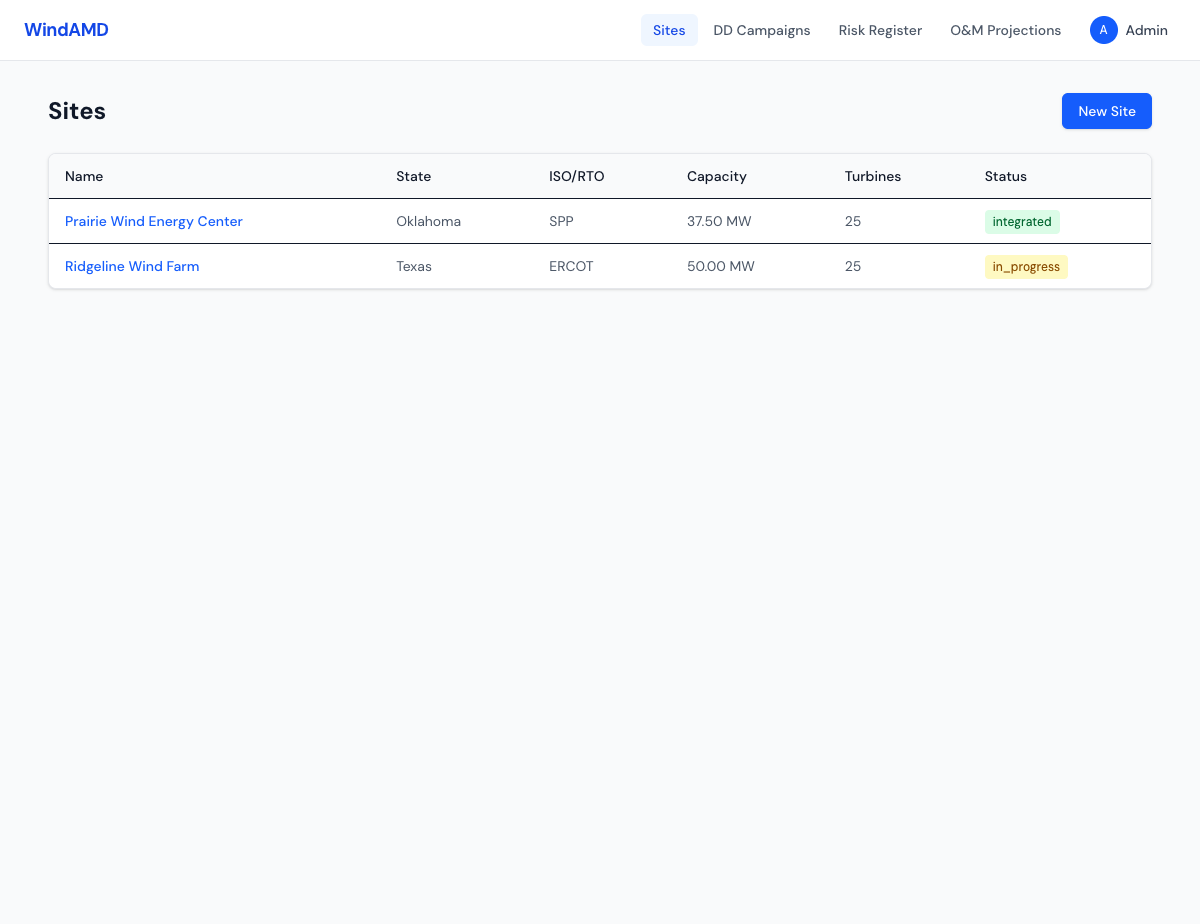
The Sites list with registered wind farms.
Creating a Site
To register a new wind site:
- Click New Site from the Sites list (or Onboard Site from the Dashboard).
- Fill in the required fields: Site Name and Timezone.
- Add optional details: State, County, ISO/RTO, turbine count, capacity, commission and acquisition dates.
- Enter SCADA infrastructure details: vendor, version, historian type, WAN connectivity.
- Click Create Site.
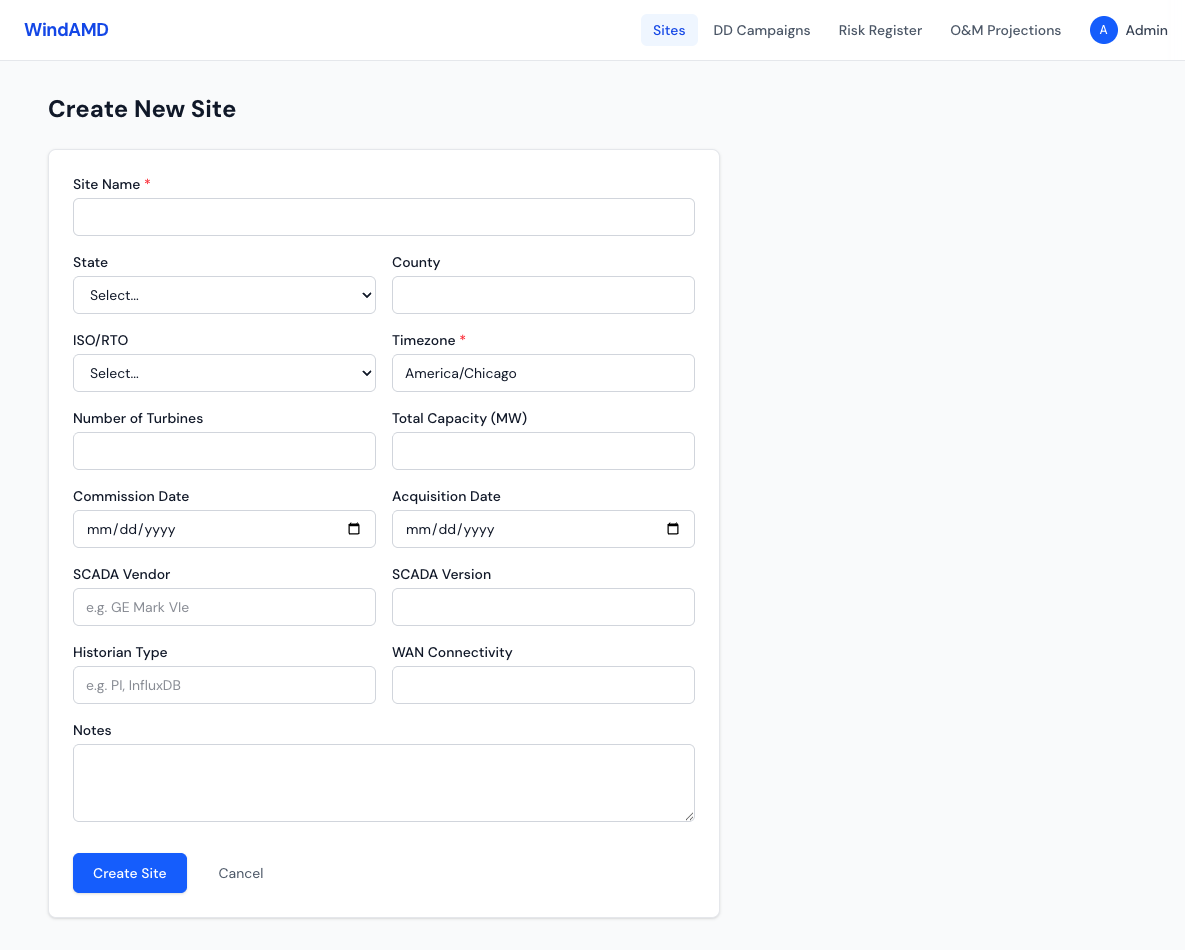
The new site creation form with SCADA infrastructure fields.
Site Detail
Click any site name to view its detail page. The detail page shows:
- Header — site name, location, ISO/RTO, and total capacity
- Status workflow — clickable status buttons to advance the site through onboarding stages: pending → in progress → integrated → archived
- Metadata cards — commission date, acquisition date, timezone, SCADA vendor, historian type, WAN connectivity
- Tabbed panels — Turbines, Work Orders, Service Agreements, Tag Mapping
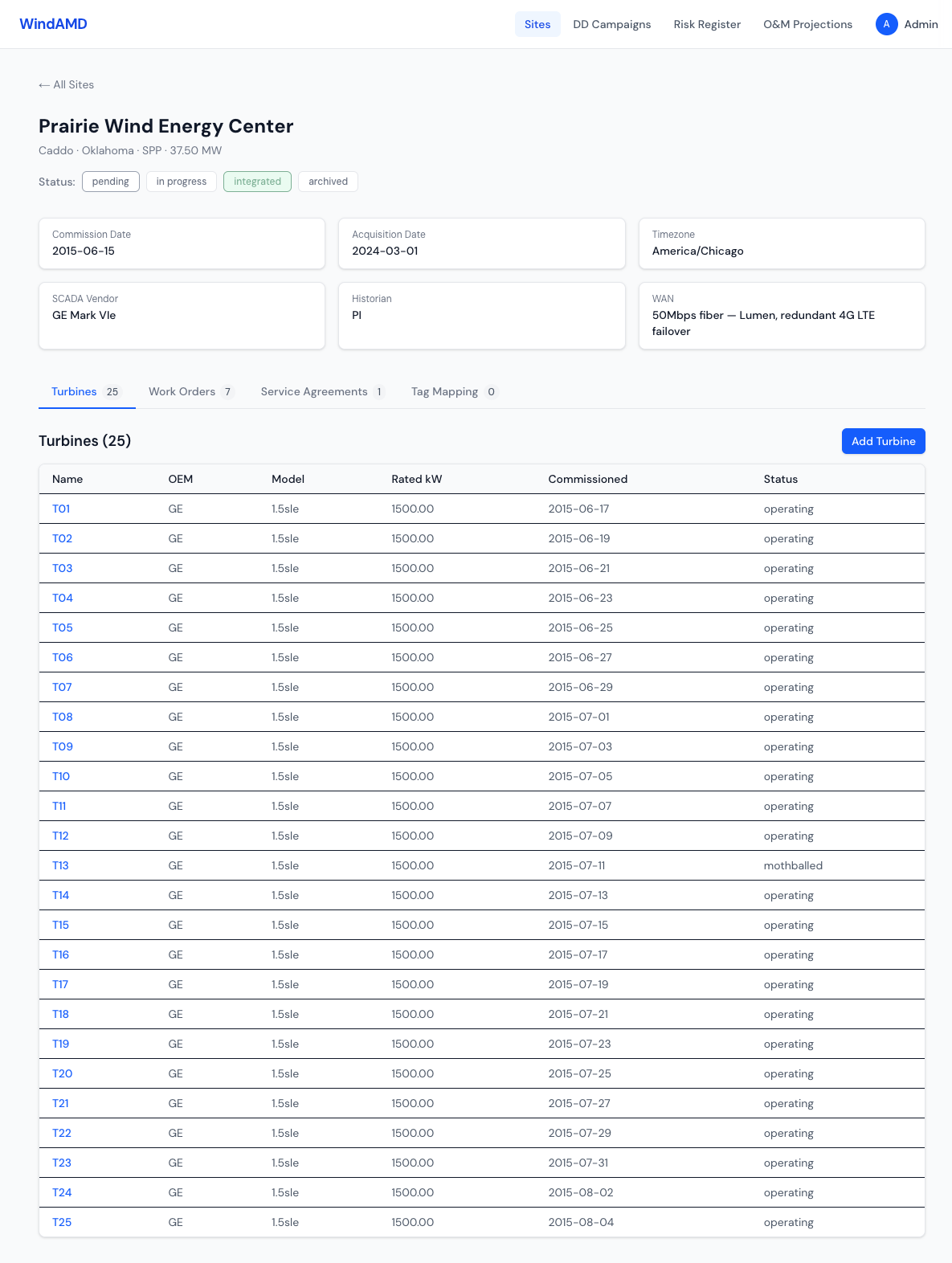
Site detail page showing status workflow, metadata, and turbine roster.
Turbines
The Turbines tab lists every turbine registered at the site. Each turbine shows:
- Turbine name (e.g., T01, T02)
- OEM and model
- Rated power in kW
- Commission date
- Operating status (operating, mothballed, or decommissioned)
Click Add Turbine to register a new turbine at the site. Click any turbine name to view its detail page, including component registry and replacement history.
Work Orders
The Work Orders tab tracks maintenance activities for the site. Summary cards at the top show:
- Open / In Progress — active work orders needing attention
- Cost YTD — year-to-date maintenance spend
- Total Cost (All Time) — lifetime maintenance spend
- MTBF — mean time between failures (when data is available)
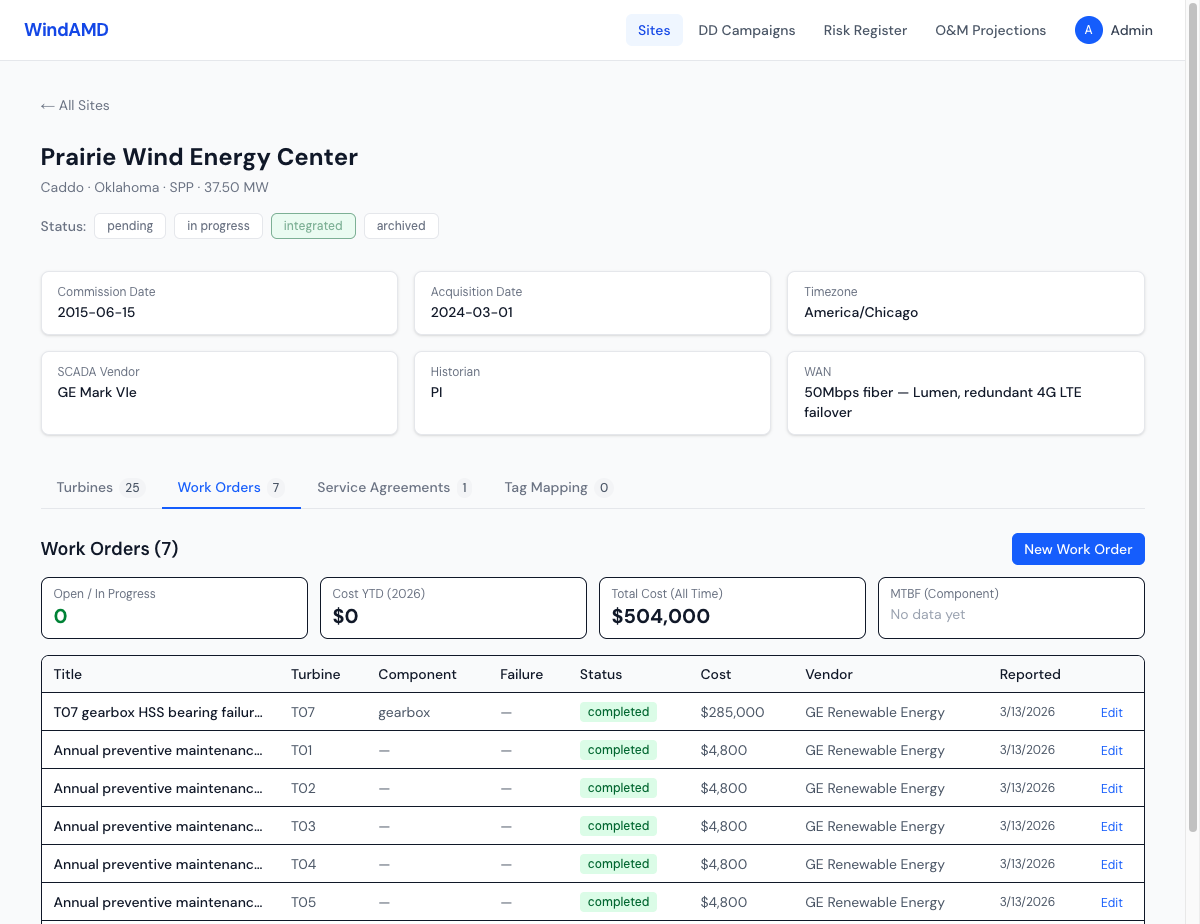
Work order tracking with cost summary cards and maintenance history.
Each work order records the turbine, component, failure mode, status, cost, vendor, and date. Click New Work Order to log maintenance or Edit to update an existing record.
Service Agreements
The Service Agreements tab tracks OEM and ISP service contracts. Each agreement shows:
- Provider name
- Agreement type (Full Service — OEM, Full Service — ISP, Parts Only, Self-Perform)
- Start and end dates
- Whether it is the current active agreement
- Availability guarantee percentage
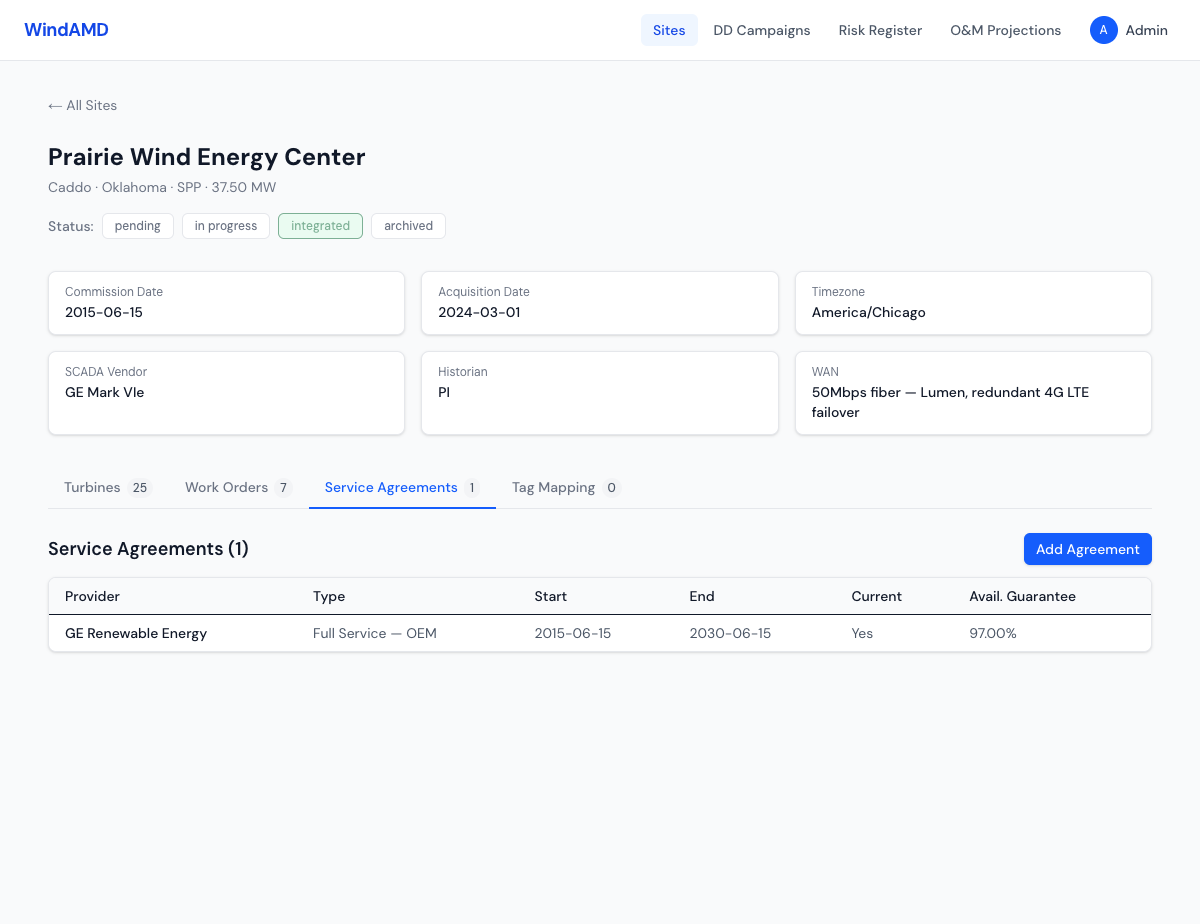
Service agreement tracking showing an active Full Service OEM contract.
Tag Mapping
The Tag Mapping tab supports SCADA signal standardization. This is where native SCADA tag names are mapped to Ridgeline’s canonical signal library (71 standardized signals). Tag mapping enables consistent cross-site analytics by normalizing vendor-specific signal naming to a common schema.